Space Router
Setup Guideline
Space Router is an API gateway that connects supported coding agents to model providers through one endpoint.
Getting started — three steps
Bought a redeem code? Do these in order. Steps 1 and 2 happen on the Space Router dashboard; step 3 picks the guide for your computer.
-
Redeem your code
Log in to Space Router, open Redeem in the left menu, paste the code from your order message, and press Redeem Code. Codes are case-sensitive and work once. Your balance updates immediately.
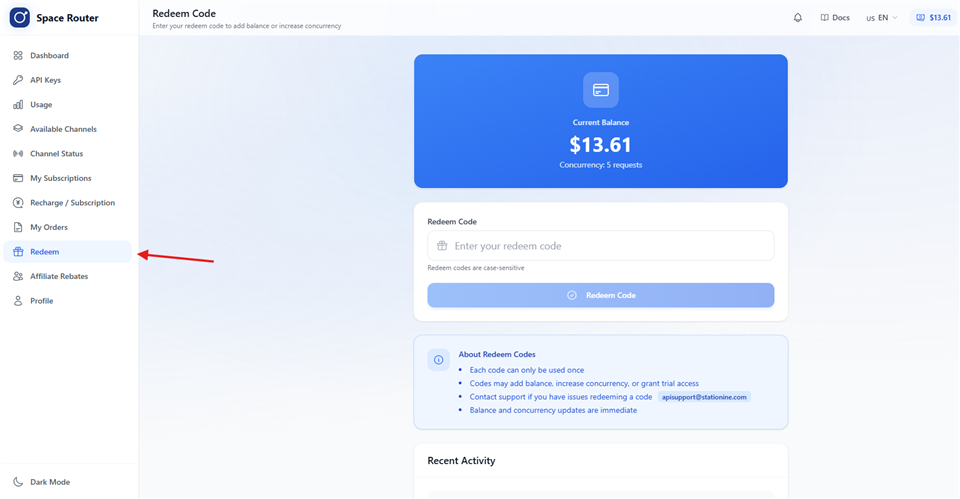
Redeem is in the left menu. Paste the code and press Redeem Code. -
Create an API key
Open API Keys in the left menu and press Create API Key. Give it any name, then choose the Group that matches what you bought: Claude for Claude Code, GPT for Codex. Leave the other options off and press Create. Copy the key that starts with
sk-and keep it private — the guides below will ask for it.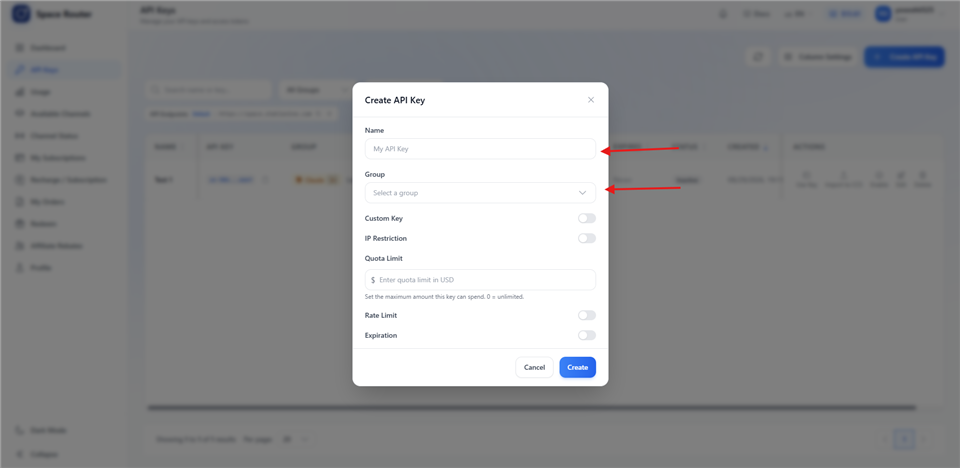
Name it anything. The Group must match your code: Claude or GPT. -
Install and connect your tool
Pick one guide below. Not comfortable with a terminal? Choose VS Code — it is one command and gives you a normal window to work in. The guides under One command have an installer that asks for your key and checks it works before saving; that command is pasted into PowerShell (Windows: press the Windows key, type
powershell, Enter) or Terminal (macOS: ⌘ Space, typeterminal, Enter). The guides under Manual setup have no installer — you fill in three values inside the tool’s own settings window, with no terminal involved.
Need a hand? Free installation support is included with every purchase. Message us on the shop where you bought the code and we will walk you through it.
Tool setup
One command
Start with the one command when an installer is available. Each guide then continues with the exact manual settings and verification steps, so you can finish or repair the setup without relying on the installer.
Claude Code
Full Windows and macOS installation, configuration, verification, and troubleshooting guide.
ChatGPT / Codex
Full Windows and macOS installation, configuration, verification, and troubleshooting guide.
VS Code
One command to set up VS Code with the Claude Code and Codex extensions. Add a Claude key, a GPT key, or both.
OpenCode
One command to cleanly install OpenCode with verified Space Router GPT, Claude, and optional Fable providers.
Grok
One command on Windows points the ChatGPT / Codex client at the Grok models; macOS is configured by hand.
Manual setup
No installer. You paste a base URL, a key and a model slug into the tool’s own settings — every guide shows exactly where, and how to check it worked.
Cursor
Bring your own key: the override base URL, the model slug, and the errors you are most likely to hit.
Hermes Agent
Five hermes config set commands, both config file locations, and the Anthropic and OpenAI routes.
OpenClaw
A copy-pasteable openclaw.json provider block, model selection, and the context settings that matter.
Cline / Roo Code / Kilo Code
The same three values in all three VS Code extensions, with each one’s path through its settings panel.
Chat clients
Cherry Studio, ChatBox and LobeChat as a custom OpenAI-compatible provider.
Build with the API
Endpoints and models
| Endpoint | Format |
|---|---|
POST /v1/messages | Anthropic Messages |
POST /v1/chat/completions | OpenAI Chat Completions |
POST /v1/responses | OpenAI Responses |
| Key group | Model slugs |
|---|---|
| Claude (group 3) | claude-opus-5, claude-sonnet-5, claude-opus-4-8, claude-opus-4-7, claude-opus-4-6, claude-sonnet-4-6 |
| GPT (group 4) | gpt-6-astra, gpt-5.6-sol, gpt-5.6-terra, gpt-5.6-luna, gpt-5.5, gpt-5.4, gpt-5.4-mini |
| Claude Fable 5 (group 5) | claude-fable-5 |
A key only works inside its own group, and a request for another group’s model returns a hard error rather than a fallback. The catalogue is versioned at /models.json, so a tool can read it at run time instead of hard-coding a model list.
Why Space Router
- One endpoint, two formats. OpenAI and Anthropic requests reach the same gateway, so a mixed toolchain needs one address.
- Streaming. Server-sent events are supported on every endpoint; add
"stream": true. - Pay as you go. Balance is consumed per request, with no monthly subscription tied to a single vendor.
- Keys scoped by group. A key is bound to what you bought, which keeps an unexpected model out of your balance.
Need credentials? Get your API key from Space Router.
FAQ
What is Space Router?
Space Router is an AI API relay operated by Station Nine. Its base URL is https://space.stationine.com, and it supports OpenAI and Anthropic API formats.
Which coding clients do these guides support?
These guides cover Claude Code, Codex CLI, Grok, Cursor, Hermes Agent, OpenClaw, Cline, Roo Code, Kilo Code, Cherry Studio, ChatBox, LobeChat, and direct API SDK use. Each guide includes configuration, verification, and troubleshooting.
Which operating systems do these guides cover?
Every guide covers native Windows and macOS setup. The Claude Code guide also explains that WSL is optional, not required, on Windows.
How do I get a Space Router API key?
Create an account at Space Router with a verified email address or GitHub or Google sign-in, add credit, and create an API key in the dashboard. Keep the key private.
Where do I get support?
Contact Space Router support at apisupport@stationine.com or through the Space Router Telegram group.