Manual setup · Desktop chat clients
Cherry Studio, ChatBox and LobeChat + Space Router
These are chat clients, not coding agents — they give you a conversation window over the models rather than an assistant that edits your files. All three accept a custom OpenAI-compatible provider, which is how Space Router connects.
If you want a coding assistant rather than a chat window, use the Claude Code, Codex or Cline family guides instead.
Before you start
You need one Space Router API key. Its group decides which model slugs you can add.
| Key group | Model slugs to add |
|---|---|
| GPT (group 4) | gpt-6-astra, gpt-5.6-sol, gpt-5.6-terra, gpt-5.6-luna, gpt-5.5, gpt-5.4, gpt-5.4-mini |
| Claude (group 3) | claude-opus-5, claude-sonnet-5, claude-opus-4-8, claude-opus-4-7, claude-opus-4-6, claude-sonnet-4-6 |
| Claude Fable 5 (group 5) | claude-fable-5 |
A key only works inside its own group. A Claude key asking for gpt-5.5, or a Claude key asking for claude-fable-5, gets a hard error rather than a fallback — Fable is a separate purchase. The live catalogue is published at /models.json.
Claude models are reachable through the OpenAI-compatible route as well, so a chat client that only speaks the OpenAI format can still use them. You always choose the OpenAI provider type here, whichever key you hold.
Step 1 · Create the key
-
Open the dashboard
Go to space.stationine.com and sign in. If you hold an unused redeem code, open Redeem in the left menu, paste it, and press Redeem Code.
-
Create the key in the right group
Click API Keys → Create API Key, name it anything, choose the Group from the table above, press Create, and copy the
sk-value without any surrounding space.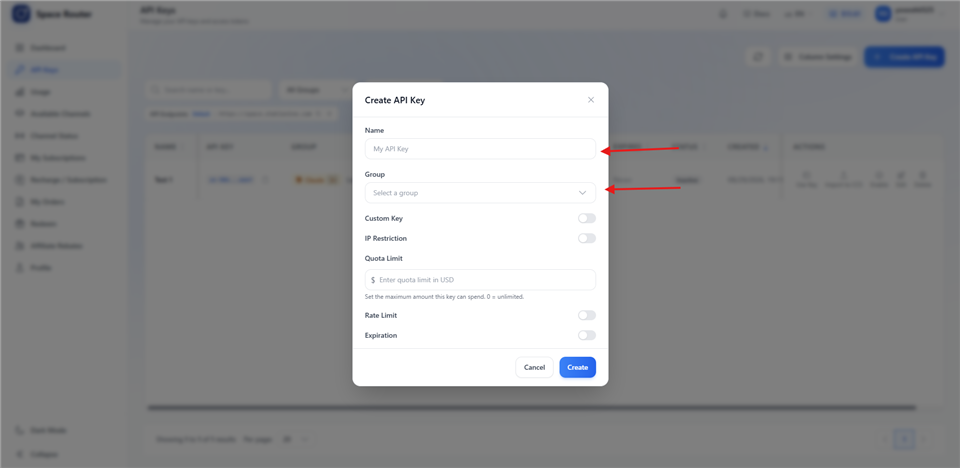
Name it anything. The Group is the part that matters.
Step 2 · The values
- Provider type OpenAI / OpenAI-compatible
- API host
https://space.stationine.com/v1 - API key
sk-your-space-router-key - Models added by hand, e.g.
gpt-5.6-sol,claude-sonnet-5
Each of these clients builds the final request URL by appending /chat/completions to the host you type, which is why the value ends at /v1.
/v1 for you, some use the address verbatim, and some change behaviour based on a trailing / or #. If the app previews the resulting endpoint anywhere in its settings, confirm it reads https://space.stationine.com/v1/chat/completions. If it does not preview it and the connection fails, try the host with and without the /v1 suffix — one of the two is right, and trying both takes ten seconds.
Cherry Studio
-
Open the provider settings
Click the gear icon in the lower left to open Settings, then choose Model Providers in the settings sidebar.
-
Add a provider
Press Add at the bottom of the provider list. Give it the name
Space Routerand set its type to OpenAI. -
Fill in the key and host
Paste the key into the API key field and the address into the API host field. Cherry Studio shows the resulting request URL under the host box in recent versions — check it before moving on.
-
Add the models
In the same provider panel use Add under the model list and type each slug exactly. Then switch the provider's toggle on, at the top right of the panel.
ChatBox
-
Open settings
Click Settings in the lower left of the ChatBox window.
-
Add a custom provider
In the model provider list choose Add Custom Provider, and set the API mode to OpenAI API Compatible.
-
Fill in the host, key and model
Enter the API host and API key, then add each model slug. ChatBox keeps the model list per provider, so the slugs you add here are exactly what the conversation window will offer.
-
Save
Press Save. The new provider appears in the model selector at the top of a conversation.
LobeChat
-
Open the language model settings
Open Settings and choose Language Model in the sidebar, then select OpenAI from the provider list.
-
Enter the key and the proxy address
Paste the key into the API Key field, and the gateway address into the API Proxy Address field. Some versions hide that field behind a toggle or disclosure arrow near the key — expand it if you do not see it.
-
Add custom model names
Use the model list on the same page to add each slug. LobeChat will otherwise show only OpenAI's own model names, which this gateway does not serve.
-
Use the connectivity check, then move on
LobeChat has a check button beside the key. It is useful, but it proves the key was accepted rather than that your model works — step 3 is still required.
Step 3 · Verify
-
Start a new conversation
Do not reuse an old conversation — it may be pinned to a model from your previous provider.
-
Pick one of the models you added
Use the model selector at the top or bottom of the conversation, depending on the client.
-
Send
Reply with OKA reply proves the host, the key and the slug are all correct together. A passing "check" button does not.
Troubleshooting
| What you see | What it means |
|---|---|
401 or 403 |
The key is wrong, revoked, or out of balance. Re-copy it from the dashboard and check for a leading or trailing space. |
404 |
The final URL is wrong — most often a doubled /v1/v1 because the client added the suffix you also typed, or a missing /v1 because it did not. |
| The model dropdown is empty | Expected for a custom provider. Add each slug by hand; there is no list for the client to fetch. |
| The model is rejected as unknown | The slug is misspelled, or it belongs to a group your key does not have. Compare it against the table above. |
| The check passes but chatting fails | The key is fine and the model is not. Confirm the slug and that it belongs to your key's group. |
What is Space Router?
Space Router is an AI API relay operated by Station Nine. Its base URL is https://space.stationine.com. It accepts Anthropic Messages requests at POST /v1/messages, OpenAI Chat Completions requests at POST /v1/chat/completions, and OpenAI Responses requests at POST /v1/responses, and it provides OpenAI GPT and Anthropic Claude model families. See the full Space Router overview for service and account details.
Need credentials? Get your API key from Space Router.