SPACE ROUTER · API / SDK
API / SDK + Space Router
Create a small local project, set a private API key, and call Space Router from Python, JavaScript or curl.
Before you start
| Field | Value | Check |
|---|---|---|
| Supported setup | Windows; macOS; Python or Node.js | Choose the matching OS installer; keep your current configuration backup |
| Account | A Space Router account and matching group credit/subscription | The app’s own login and the router API key are separate |
Download stages are shown in the terminal. Direct downloads show a progress bar or received bytes; package managers use their own output. A percentage may be unavailable. Keep the terminal open until the final installation and connection results.
Space Router one-click scripts report INSTALLATION separately from CONNECTION. DONE means the app or command was checked; VERIFIED means the stated response test passed. SKIPPED / NOT CONFIGURED needs the connection steps. FAILED / INCOMPLETE needs the displayed error fixed. A CLI test does not verify a desktop app or editor panel.
Model examples and placeholders must be replaced with IDs allowed by your key’s group. You can install the app first, then create the key before the connection steps.
When this tool uses your Space Router endpoint and key, its model requests use your Space Router balance or eligible subscription. App sign-in, app subscriptions and cloud-only features are separate. Confirm the actual route in usage history after testing.
1 · Install from zero
Windows
Install Python 3 from python.org. Open PowerShell in a new empty project folder and create a virtual environment:
py -m venv .venv
.\.venv\Scripts\python.exe -m pip install openai anthropic
macOS
Install Python 3 from the official download page, then open Terminal in an empty project folder:
python3 -m venv .venv
.venv/bin/python -m pip install openai anthropic
For JavaScript instead, install the current supported Node.js from its official download page, check node --version, and run npm init -y then npm install openai in your new project. Do not run these commands in an unrelated existing repository.
2 · Create your API key
Sign in to Space Router
Open space.stationine.com and sign in to your own account. Confirm you have usable credit or an eligible subscription before testing.Create a dedicated API key
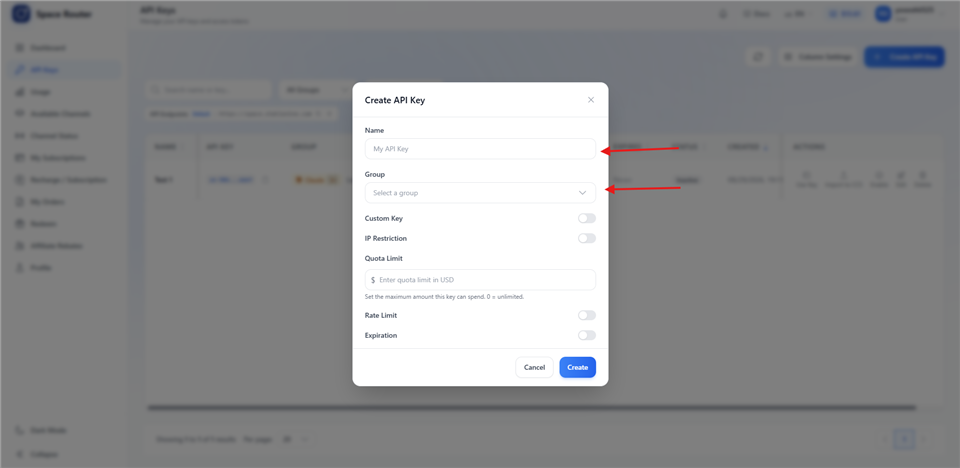
Open API Keys → Create API Key. Name the key after this tool. Select GPT / OpenAI or Claude / Anthropic; use the groups actually available to your account. A key for a different model family is not interchangeable.Copy the full key and the model ID
Save the full key in your password manager. Copy one exact model ID allowed by that key’s group from Available Channels. Keep any limits or expiry you need. A model shown in an app’s public list may not belong to your key.Keep the key private
Paste the key only into your own app or local credential store. Do not include it in shared screenshots, project files, import links or support messages. For two purchased groups, create two separate keys.
3 · Connect Space Router
Set the following environment variables in the terminal where you will run the example. Replace values only on your own device; never commit a real key to source. Select the matching group before choosing the example.
Windows
$env:SPACE_ROUTER_API_KEY = 'YOUR_GROUP_API_KEY'
$env:SPACE_ROUTER_MODEL = 'YOUR_ALLOWED_MODEL_ID'
macOS
export SPACE_ROUTER_API_KEY='YOUR_GROUP_API_KEY'
export SPACE_ROUTER_MODEL='YOUR_ALLOWED_MODEL_ID'
Python · GPT / Responses
Save as space_router_gpt.py:
import os
from openai import OpenAI

client = OpenAI(
    api_key=os.environ["SPACE_ROUTER_API_KEY"],
    base_url="https://space.stationine.com/v1",
)
response = client.responses.create(
    model=os.environ["SPACE_ROUTER_MODEL"],
    input="What is 17 plus 25? Reply with just the number.",
)
print(response.output_text)
Windows
.\.venv\Scripts\python.exe space_router_gpt.pymacOS
.venv/bin/python space_router_gpt.pyPython · Claude / Messages
For a Claude key instead, save space_router_claude.py and run it using the same virtual-environment Python:
import os
from anthropic import Anthropic

client = Anthropic(
    api_key=os.environ["SPACE_ROUTER_API_KEY"],
    base_url="https://space.stationine.com",
)
message = client.messages.create(
    model=os.environ["SPACE_ROUTER_MODEL"],
    max_tokens=64,
    messages=[{"role": "user", "content": "What is 17 plus 25? Reply with just the number."}],
)
print("".join(block.text for block in message.content if block.type == "text"))
JavaScript · GPT / Responses
After npm install openai, save as space-router.mjs and run node space-router.mjs:
import OpenAI from "openai";

const client = new OpenAI({
  apiKey: process.env.SPACE_ROUTER_API_KEY,
  baseURL: "https://space.stationine.com/v1",
});
const response = await client.responses.create({
  model: process.env.SPACE_ROUTER_MODEL,
  input: "What is 17 plus 25? Reply with just the number.",
});
console.log(response.output_text);
Raw HTTP without an SDK
Windows
$body = @{
  model = $env:SPACE_ROUTER_MODEL
  input = "What is 17 plus 25? Reply with just the number."
} | ConvertTo-Json
Invoke-RestMethod -Method Post -Uri "https://space.stationine.com/v1/responses" -Headers @{ Authorization = "Bearer $env:SPACE_ROUTER_API_KEY" } -ContentType "application/json" -Body $body
macOS
curl --fail-with-body https://space.stationine.com/v1/responses \
  -H "Authorization: Bearer $SPACE_ROUTER_API_KEY" \
  -H "Content-Type: application/json" \
  -d "{\"model\":\"$SPACE_ROUTER_MODEL\",\"input\":\"What is 17 plus 25? Reply with just the number.\"}"
Which account does this example use?
The base_url/baseURL and API key supplied to the SDK determine this request’s destination. The examples use Space Router; a ChatGPT or Claude browser login does not supply the API credential. Keep Responses and Messages examples paired with their matching groups.
4 · Verify a real response
Run one matching example
Set the key and model variables in the same terminal, then run either the GPT or Claude example matching your group. For Python use the virtual-environment interpreter shown above; for JavaScript run the .mjs file.Inspect the completed output
The SDK example should print 42. Raw HTTP returns a JSON response: inspect its final message content, not only status 200. For streaming experiments later, also require a terminal event; do not regard the first chunk as completion.Match the request in usage history
In Space Router, match the request time, API key and model. The real call is billed normally. Remove the private test key from your terminal environment after you finish.
Troubleshooting
| Symptom | What to check |
|---|---|
| 401 / 403 | Check the full key, its enabled/expiry/IP settings, and group permission. Re-paste privately; do not publish the key. |
| 404 / model not found | Match the API format, base URL and exact model ID. Do not add /v1 twice or enter a full request path into a base-URL field. |
| 429 / credit or quota error | Check account credit, key quota and rate/concurrency limits. Repeated retries do not add balance or remove a limit. |
| Timeout / incomplete reply | Check the network and channel status. Keep the time and request ID for support; do not treat a partially received reply as a successful test. |
| Still uses the previous provider | Reopen the client, start a new conversation, and check its selected provider and any environment/config overrides. Restore a backup instead of deleting the whole configuration. |
| Module not found / env var missing | Run the virtual-environment Python that installed the SDK, and set both variables in the same terminal before running the example. |
If you need help, send the app version, operating system, model ID, timestamp and request ID to Space Router support. Redact keys and private project content.
Backup, update and recovery
Before editing an existing setup, copy your local example files and private environment/credential store to a private backup. Keep the original provider name and model selection so you can return to them. Do not put credential backups in a project repository.
To recover, close the client, restore the specific file or select the previous provider, then reopen it. Keep conversations and other unrelated settings. Revoke an exposed key in Space Router and create a replacement only if it was actually exposed.
Clear the test key from the process environment when finished. Keep dependencies inside this project’s virtual environment; uninstalling a sample project does not require deleting system Python or Node.js.