Manual setup · VS Code extensions
Cline, Roo Code and Kilo Code + Space Router
Roo Code and Kilo Code both descend from Cline, so all three take the same OpenAI-compatible provider. Learn the three values once and the only difference is where each extension hides the fields.
If you would rather have the Claude Code and Codex extensions set up for you in one command, use the VS Code guide instead. This page is for the Cline family, which is configured by hand.
Before you start
You need one Space Router API key. Its group decides which model IDs you can enter.
| Key group | Provider to select | Model IDs |
|---|---|---|
| GPT (group 4) | OpenAI Compatible | gpt-6-astra, gpt-5.6-sol, gpt-5.6-terra, gpt-5.6-luna, gpt-5.5, gpt-5.4, gpt-5.4-mini |
| Claude (group 3) | OpenAI Compatible, or Anthropic with a custom base URL | claude-opus-5, claude-sonnet-5, claude-opus-4-8, claude-opus-4-7, claude-opus-4-6, claude-sonnet-4-6 |
| Claude Fable 5 (group 5) | OpenAI Compatible, or Anthropic with a custom base URL | claude-fable-5 |
A key only works inside its own group. A Claude key asking for gpt-5.5, or a Claude key asking for claude-fable-5, gets a hard error rather than a fallback — Fable is a separate purchase. The live catalogue is published at /models.json.
Step 1 · Create the key
-
Open the dashboard
Go to space.stationine.com and sign in. If you hold an unused redeem code, open Redeem in the left menu, paste it, and press Redeem Code.
-
Create the key in the right group
Click API Keys → Create API Key, name it anything, choose the Group from the table above, and press Create. Copy the
sk-value, taking care not to include a surrounding space.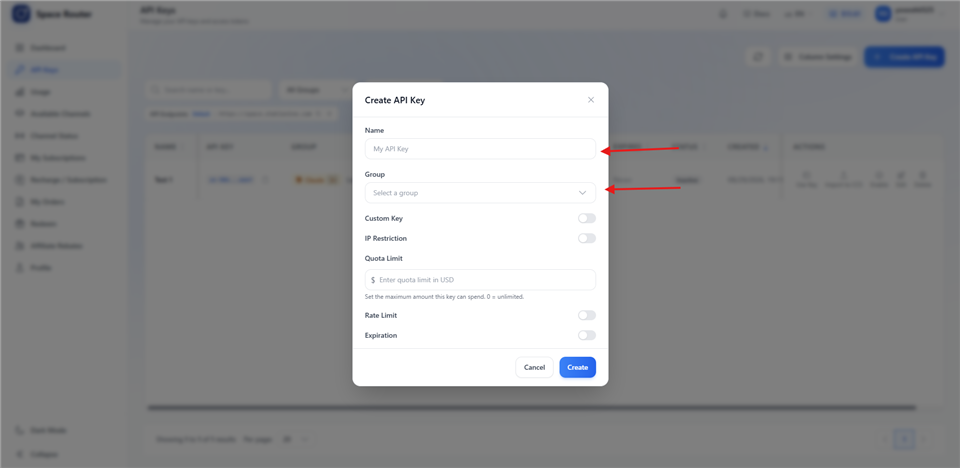
Name it anything. The Group is the part that matters.
Step 2 · Install the extension
-
Open the Extensions view
In VS Code press
Ctrl + Shift + X(Windows) or⌘ + Shift + X(macOS). -
Install one of the three
Search for Cline, Roo Code or Kilo Code and press Install. You only need one — they do the same job and each keeps its own settings.
-
Open its panel
Click the extension's icon in the left activity bar. The first run usually shows a welcome screen that asks you to choose a provider; you can go through it now or skip it and use the settings gear described below.
Step 3 · The three values
Whichever extension you picked, these are what you are entering. The per-extension sections that follow only tell you where the boxes are.
- API Provider OpenAI Compatible
- Base URL
https://space.stationine.com/v1 - API Key
sk-your-space-router-key - Model ID
gpt-5.6-sol, orclaude-sonnet-5on a Claude key
The /v1 suffix matters: these extensions append /chat/completions to what you type. If you instead pick an extension's native Anthropic provider and switch on its custom base URL option, use the bare root https://space.stationine.com, because that path appends /v1/messages itself.
The model ID is typed, not picked from a list. These extensions cannot enumerate models they do not already know about, so enter the ID exactly — claude-sonnet-5, not Claude Sonnet 5.
Cline
-
Open settings
Open the Cline panel from the activity bar and click the settings gear at the top of the panel.
-
Choose the provider
Set API Provider to OpenAI Compatible. The form below it changes to show a Base URL field, an API Key field and a Model ID field.
-
Fill in the three values and save
Enter them from the list above, then use Done or Save at the top of the settings panel and return to the chat view.
Cline also ships a native Anthropic provider with an option to supply your own base URL. On a Claude or Fable key, that is a valid alternative: select it, switch on the custom base URL, and enter the gateway root instead.
Roo Code
-
Open settings
Open the Roo Code panel and click the settings gear, then open the Providers section.
-
Create a new configuration profile
Roo Code stores provider settings in named profiles. If one already points at another service, add a new profile rather than editing it — that way you can switch back without re-entering anything.
-
Choose the provider and fill in the values
Set the API provider to OpenAI Compatible, enter the three values, and save the profile. Make sure the new profile is the selected one before you close settings.
Kilo Code
-
Open settings
Open the Kilo Code panel and click the settings gear, then open the Providers section.
-
Choose the provider and fill in the values
Select OpenAI Compatible, enter the same Base URL, API Key and Model ID, and save.
Step 4 · Verify
-
Open a small project folder
Use a scratch folder, not the repository you care about. These extensions edit files.
-
Send one short task
Type
Reply with OKin the extension panel. A reply proves the base URL, the key and the model ID are all correct together. -
Then try one small, reversible edit
Ask it to create a single throwaway file. That confirms tool calling works end to end, which a plain reply does not. An agent failing halfway through editing real files is a much worse place to discover a typo.
Troubleshooting
| What you see | What it means |
|---|---|
401 or 403 |
The key is wrong, revoked, or out of balance. Re-copy it from the dashboard and check for a leading or trailing space. |
404 |
A missing /v1 on the OpenAI Compatible route, or a /v1 that should not be there on the Anthropic route. Can also be a misspelled model ID. |
| The model list is empty | Expected on an OpenAI Compatible provider. Type the model ID by hand instead of waiting for a list to load. |
| It answers but never edits files | The model is replying without tool calls. Check that you selected a model from the table above and that the extension is in its agent mode rather than a plain chat mode. |
| Roo Code ignores the change | A different configuration profile is still selected. Switch to the profile you edited. |
What is Space Router?
Space Router is an AI API relay operated by Station Nine. Its base URL is https://space.stationine.com. It accepts Anthropic Messages requests at POST /v1/messages, OpenAI Chat Completions requests at POST /v1/chat/completions, and OpenAI Responses requests at POST /v1/responses, and it provides OpenAI GPT and Anthropic Claude model families. See the full Space Router overview for service and account details.
Need credentials? Get your API key from Space Router.