Windows one command · macOS by hand
Grok + Space Router
Grok has no desktop client of its own, so the ChatGPT / Codex app is the client. This setup points it at Space Router's Grok models and leaves Claude Code untouched.
Before you start
You need a Space Router key in the Grok group. A key from another group will not call a grok- model — it returns a hard error rather than falling back.
| Model slug | When to use it |
|---|---|
grok-4.6 | The default. Start here. |
grok-4.5 | The previous release, if 4.6 behaves differently on your work. |
grok-4.3 | Older still; keep it for reproducing an earlier result. |
grok-build-0.1 | The build-focused variant. |
The live catalogue is published at /models.json, under the grok block.
Step 1 · Create the key
-
Open the dashboard
Go to space.stationine.com and sign in. If you have a redeem code and have not used it yet, open Redeem in the left menu first, paste the code, and press Redeem Code.
-
Open API Keys
In the left menu, click API Keys, then press Create API Key.
-
Choose the Grok group
Type any name you like. In the Group selector choose Grok. Leave every other option at its default and press Create.
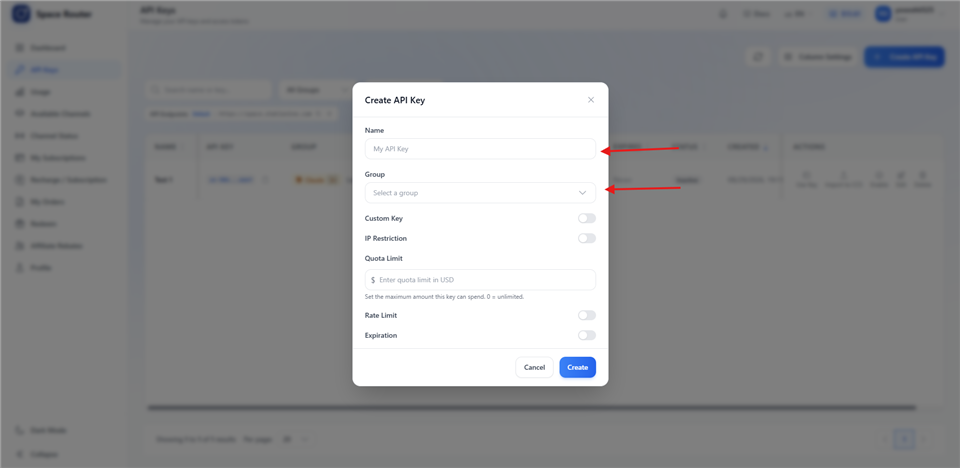
Name it anything. The Group is the part that matters. -
Copy the key
Copy the value that begins with
sk-. Select it carefully — a space copied in front of or behind the key is the single most common cause of a setup that fails with a correct key.
Step 2 · Windows: one command
The installer installs or updates the ChatGPT / Codex client, asks for your Grok key, checks that key against the gateway with a real request, and only then writes the configuration.
-
Open PowerShell
Press the Windows key, type
powershell, press Enter. A blue or black window opens. -
Paste the command and press Enter
Right-click inside the window to paste, then press Enter.
irm https://stationine.com/setup-grok.ps1 | iex -
Paste the Grok key when asked
The installer prompts for the Grok key and nothing else — it does not ask for a GPT key and it does not touch Claude Code. Paste the
sk-value and press Enter. It reports success only after the key passes a live request.
Once it finishes, skip to step 3.
Step 2 · macOS: by hand
Install the ChatGPT / Codex client first if you do not have it. Then create or edit two files in ~/.codex/.
-
Open Terminal
Press ⌘ Command + Space, type
terminal, press Enter. -
Write the provider into
~/.codex/config.tomlAdd these four root keys and the provider block. If the file already has other settings, keep them — replace only the lines below and any existing
[model_providers.space-router-grok]block.model = "grok-4.6" model_provider = "space-router-grok" cli_auth_credentials_store = "file" [model_providers.space-router-grok] name = "Space Router (Grok)" base_url = "https://space.stationine.com/v1" wire_api = "responses" requires_openai_auth = true -
Write the key into
~/.codex/auth.jsonThe provider authenticates from this file. Replace the placeholder with your Grok key.
{
  "auth_mode": "apikey",
  "OPENAI_API_KEY": "sk-your-grok-group-key"
}
The key name is
OPENAI_API_KEYeven though the models are Grok — that is the field the Codex client reads, and the gateway routes on the model slug, not on the field name. -
Lock the file down
It holds a live credential, so keep it readable only by you.
chmod 600 ~/.codex/auth.json
Step 3 · Restart and verify
-
Fully quit the app
Closing the window is not enough — the client keeps running and holds the old configuration. On Windows, quit it from the system tray. On macOS, press ⌘ Q or use ChatGPT → Quit. Then open it again.
-
Select a Grok model
In the model picker, choose grok-4.6. It appears under the Space Router (Grok) provider name.
-
Send one short message
Send
Reply with OK. A reply proves the key, the base URL and the model slug are all correct together. Do this before starting real work — a configuration mistake found mid-task costs more than this thirty seconds.
Your existing ChatGPT account, email and history are untouched by this setup; the client keeps them and simply gains the Space Router Grok models.
Switching Grok models
All four slugs are registered, so you switch in the client's model picker without editing anything. To change which one is selected at startup, edit the model line in ~/.codex/config.toml (Windows: the same file inside your user folder) and restart the client.
Where the settings live
- Routing
~/.codex/config.toml - Credential
~/.codex/auth.json - Model catalogue
~/.codex/space-router-models.json
On Windows these sit in %USERPROFILE%\.codex\. The installer backs up whatever was there before it writes.
Troubleshooting
| What you see | What it means |
|---|---|
401 or 403 |
The key is wrong, revoked, or out of balance. Re-copy it from the dashboard and check for a leading or trailing space. |
| The model is rejected as unknown | The key is not in the Grok group. A GPT or Claude key cannot call a grok- model. |
| No Grok model in the picker | The client was not fully quit, or it reopened before the configuration was written. Quit it from the tray or with ⌘ Q, then open it again. |
| It still uses your old provider | model_provider in config.toml is not space-router-grok, or a second provider block further down the file is overriding it. |
| Claude Code changed too | It should not have. This flow does not touch Claude Code — if it did, a different installer was run. See the Claude Code guide. |
What is Space Router?
Space Router is an AI API relay operated by Station Nine. Its base URL is https://space.stationine.com. It accepts Anthropic Messages requests at POST /v1/messages, OpenAI Chat Completions requests at POST /v1/chat/completions, and OpenAI Responses requests at POST /v1/responses, and it provides OpenAI GPT, Anthropic Claude and xAI Grok model families. See the full Space Router overview for service and account details.
Need credentials? Get your API key from Space Router.