Manual setup · Windows and macOS
Cursor + Space Router
Cursor lets you bring your own key. Point it at Space Router and the Chat and Agent windows call Claude or GPT models on your balance instead of a Cursor subscription.
There is no one-command installer for Cursor. Everything below is typed into Cursor's own settings window, so the five steps are identical on Windows and macOS. Budget about five minutes.
Before you start
Install Cursor from cursor.com if you have not already. Then decide which key group you are using, because it decides both the provider section you fill in and the model slugs available to you.
| Key group | Cursor provider section | Model slugs |
|---|---|---|
| GPT (group 4) | OpenAI | gpt-6-astra, gpt-5.6-sol, gpt-5.6-terra, gpt-5.6-luna, gpt-5.5, gpt-5.4, gpt-5.4-mini |
| Claude (group 3) | Anthropic | claude-opus-5, claude-sonnet-5, claude-opus-4-8, claude-opus-4-7, claude-opus-4-6, claude-sonnet-4-6 |
| Claude Fable 5 (group 5) | Anthropic | claude-fable-5 |
A key only works inside its own group. A Claude key asking for gpt-5.5, or a Claude key asking for claude-fable-5, gets a hard error rather than a fallback — Fable is a separate purchase. The live catalogue is published at /models.json.
If you are not sure which to start with: claude-sonnet-5 on a Claude key, gpt-5.6-sol on a GPT key.
Step 1 · Create the key
-
Open the dashboard
Go to space.stationine.com and sign in. If you have a redeem code and have not used it yet, open Redeem in the left menu, paste the code, and press Redeem Code. The balance updates immediately.
-
Open API Keys and create one
Click API Keys in the left menu, then Create API Key. Type any name. In the Group selector choose the group from the table above. Leave the other options at their defaults and press Create.
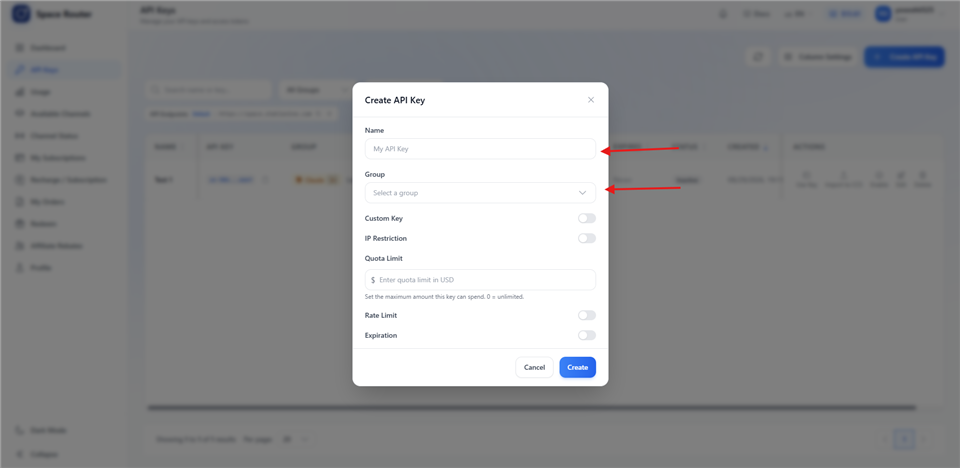
Name it anything. The Group is the part that matters. -
Copy the
sk-valueSelect it carefully. A space copied in front of or behind the key is the most common reason a correct key still returns
401.
Step 2 · Open the model settings
-
Open Cursor Settings
Windows
Press
Ctrl + Shift + J, or click the gear icon at the top right of the window.macOS
Press
⌘ + Shift + J, or click the gear icon at the top right of the window. -
Go to Models
In the settings sidebar click Models. If you cannot see it, type
Modelsinto the settings search box at the top. The page has two parts you will use: a list of models, and further down an API Keys area with one section per provider.
Step 3 · Add the model slug
Do this before switching the provider on. Cursor only offers models it already knows about, and Space Router's slugs are not in its built-in list, so you add them yourself.
-
Open the model list
In the Models page, find the list of model names with checkboxes beside them and the control for adding one — labelled + Add model or Add custom model depending on your Cursor version.
-
Type the slug exactly
Enter the slug from the table above and confirm. Use the slug, not a display name:
claude-sonnet-5works,Claude Sonnet 5does not. Repeat for each model you want available. -
Make sure it is ticked
A newly added model is not always enabled. Confirm its checkbox is on, or it will not appear in the chat model picker later.
Step 4 · Key and override base URL
Fill in only the section that matches your key group, and leave the other providers switched off. Mixing two providers on one key is the second most common cause of a 404.
-
Switch the provider on
In the API Keys area, turn on the toggle beside OpenAI API Key (GPT group) or Anthropic API Key (Claude and Fable groups).
-
Paste the key
Paste the
sk-value into that section's key field. -
Open the base URL override and enter the address
Tick Override Base URL — in some versions it is behind a small Override link or a disclosure arrow next to the key field. Then enter the value for your group:
GPT key → OpenAI section
https://space.stationine.com/v1Ends at
/v1, because Cursor appends/chat/completionsitself.Claude or Fable key → Anthropic section
https://space.stationine.comNo suffix, because this path appends
/v1/messagesitself.Three details decide whether this works: no trailing slash,
httpswith thes, and no stray space from the copy. -
Press Verify
A pass means Cursor reached the gateway and the key was accepted. It does not prove your chosen model works — that is the next step.
The values in one place, if you just want to copy them:
- Provider section OpenAI (GPT key) or Anthropic (Claude / Fable key)
- API key
sk-your-space-router-key - Override base URL
https://space.stationine.com/v1orhttps://space.stationine.com - Model
gpt-5.6-solorclaude-sonnet-5
Step 5 · Send a real message
-
Open a normal Chat window
Press
Ctrl + Lon Windows or⌘ + Lon macOS. -
Pick your model in the picker
Use the model selector at the bottom of the chat box and choose the slug you added. If it is not listed, go back to step 3 — it was added but not ticked.
-
Send
Reply with OKA reply means the key, the base URL and the model slug are all correct together. This is the only check that proves the whole route.
Using Agent
Test plain Chat before you trust Agent. Agent sends tool calls that exercise more of the protocol, so it is the wrong place to discover a configuration mistake. Once Chat replies, switch the same conversation to Agent and give it a small, reversible task first.
Tab completion is unaffected by any of this. It runs on Cursor's own internal models, so it neither uses your Space Router balance nor stops working when the override is set.
Where the settings live
Cursor keeps the key and the base URL in its own application settings, not in a file you are meant to edit by hand. Change them through the same Settings window. To undo this setup, clear the override base URL field, remove the key, and switch the provider toggle back off.
Troubleshooting
| What you see | What it means |
|---|---|
401 or 403 |
The key is wrong, revoked, or out of balance. Re-copy it from the dashboard and check for a leading or trailing space. |
404, or the model is missing |
The slug is misspelled, it belongs to a group your key does not have, or the base URL has the wrong /v1 treatment for the section you filled in. |
| Verify passes, Agent fails | Basic connectivity is fine. Confirm plain Chat replies first, then retry Agent; a model without tool-calling support cannot drive Agent. |
| The model is not in the chat picker | It was added to the Models list but its checkbox is off. See step 3. |
| Tab completion unchanged | Expected. Tab completion runs on Cursor's own internal models and is not affected by a base-URL override. |
| The setting reverts after a restart | Fully quit Cursor — not just the window — and reopen it, then re-enter the value once. Cursor writes model settings on a clean exit. |
What is Space Router?
Space Router is an AI API relay operated by Station Nine. Its base URL is https://space.stationine.com. It accepts Anthropic Messages requests at POST /v1/messages, OpenAI Chat Completions requests at POST /v1/chat/completions, and OpenAI Responses requests at POST /v1/responses, and it provides OpenAI GPT and Anthropic Claude model families. See the full Space Router overview for service and account details.
Need credentials? Get your API key from Space Router.